
Playwright: Interacting with Button
Buttons are one of the most common interactive elements on web pages. In this guide, you'll learn how to test different types of button clicks using Playwright, from basic single clicks to more advanced interactions like double clicks and long presses.
Why Test Button Interactions?
Buttons trigger actions on web pages. Testing them ensures:
- Users can click buttons and trigger the intended actions
- Buttons respond correctly to different types of interactions
- Buttons show the correct state (enabled, disabled)
- Click events are properly handled by your application
Basic Button HTML
Before we test buttons, let's understand what a button element looks like in HTML:
<button type="button" class="btn-primary">
  Click Me
</button>
A button element can have attributes like:
type: Specifies the button type (button, submit, reset)disabled: Makes the button non-clickableclass: CSS class for styling
Finding Buttons with Playwright Locators
Playwright provides several ways to locate buttons. The recommended approach is using getByRole():
// Find by button role and text
await page.getByRole("button", { name: "Click Me" }).click()

// Find by role without specific name
await page.getByRole("button").click()

// Find by exact text
await page.getByText("Click Me").click()
getByRole() over CSS selectors because it's more resilient to HTML changes and aligns with how users interact with your page.Practice with Codemo Playground
Codemo provides an interactive button testing playground where you can practice testing different button interactions. Each scenario has:
- A button to interact with
- A description of what to test
- A counter to verify the interaction was registered
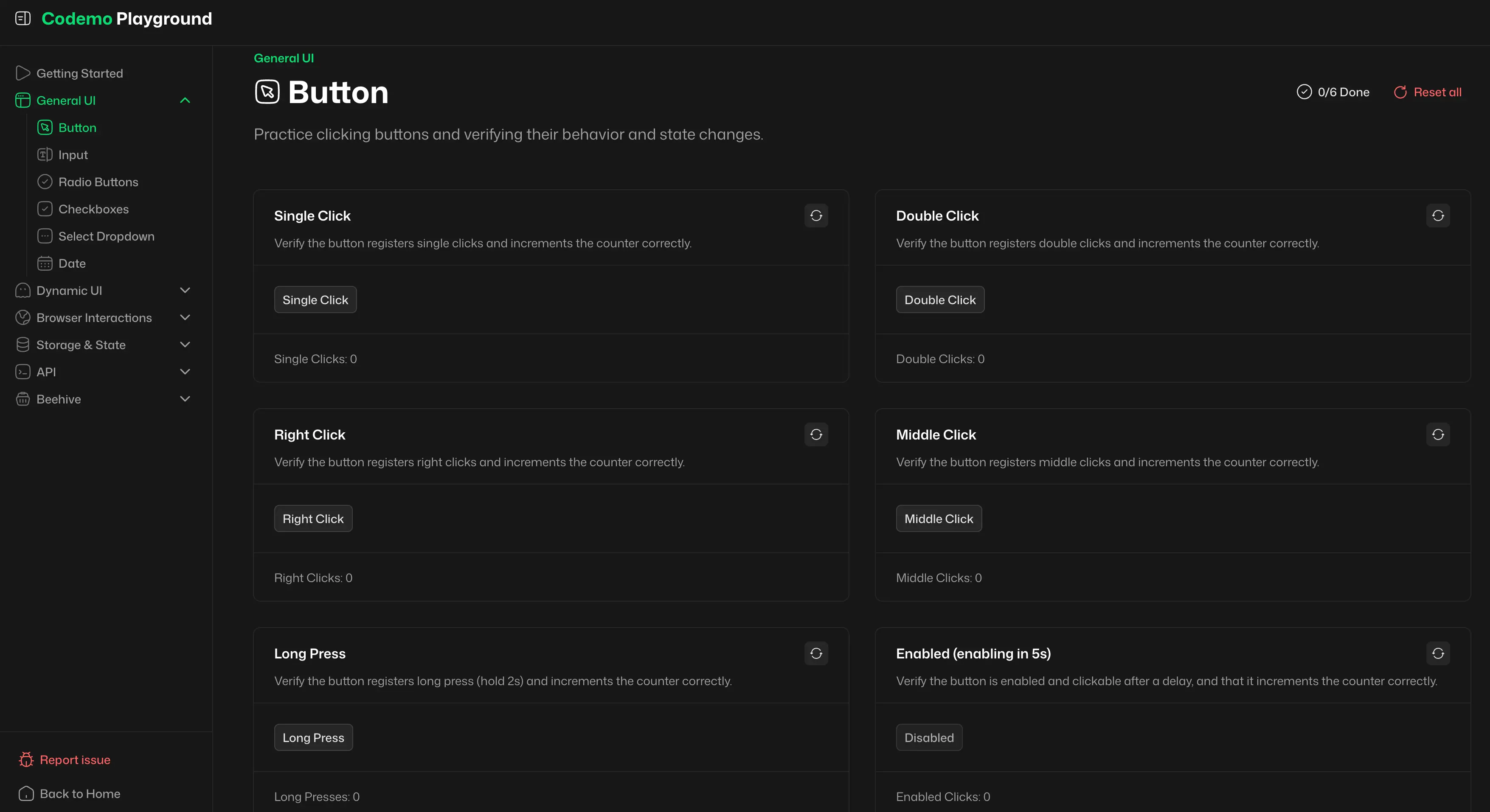
Try these challenges:
- Single-click the button and verify the counter increments
- Double-click the button and check the result
- Right-click the button to trigger a context menu
- Middle-click the button to test the middle button event
- Long-press the button for 2 seconds and verify registration
- Wait for a disabled button to become enabled, then click it
Testing Single Clicks
A single click is the most basic button interaction. Here's how to test it:
import { test, expect } from "@playwright/test"

// Test that verifies a single click on a button increments the counter
test("button should register a single click", async ({ page }) => {
  await page.goto("http://codemo.dev/playground/general/button/")

  // Perform a single click and verify the counter increments
  await page.getByRole("button", { name: "Single Click" }).click()

  // Assert that the counter now shows 1 click
  await expect(page.getByTestId("playground-case-footer-single-click")).toHaveText("Single Clicks: 1")
})
Testing Double Clicks
A double click occurs when a button is clicked twice rapidly. Double-click events are useful for actions like editing or toggling modes:
// Test that verifies a double click on a button registers as a double-click event
test("button should register a double click", async ({ page }) => {
  await page.goto("http://codemo.dev/playground/general/button/")

  // Perform a double click using the dblclick() method
  await page.getByRole("button", { name: "Double Click" }).dblclick()

  // Assert that the counter registers the double click
  await expect(page.getByTestId("playground-case-footer-double-click")).toHaveText("Double Clicks: 1")
})
The dblclick() method sends a double-click event to the button.
Testing Right Clicks
A right-click (context menu) event happens when a user clicks the right mouse button. This is useful for testing custom context menus:
// Test that verifies a right-click (context menu) event on a button
test("button should register a right click", async ({ page }) => {
  await page.goto("http://codemo.dev/playground/general/button/")

  // Perform a right-click by specifying button: "right"
  await page.getByRole("button", { name: "Right Click" }).click({ button: "right" })

  // Assert that the counter registers the right click
  await expect(page.getByTestId("playground-case-footer-right-click")).toHaveText("Right Clicks: 1")
})
The click({ button: "right" }) option triggers a right-click event.
Testing Middle Clicks
A middle click occurs when the user clicks the scroll wheel (middle button) on a mouse. Some applications use middle clicks to open links in new tabs:
// Test that verifies a middle-click (scroll wheel) event on a button
test("button should register a middle click", async ({ page }) => {
  await page.goto("http://codemo.dev/playground/general/button/")

  // Perform a middle-click by specifying button: "middle"
  await page.getByRole("button", { name: "Middle Click" }).click({ button: "middle" })

  // Assert that the counter registers the middle click
  await expect(page.getByTestId("playground-case-footer-middle-click")).toHaveText("Middle Clicks: 1")
})
Testing Long Presses
A long press (or hold) occurs when a user holds down the mouse button for an extended period. This is common for mobile interactions or special actions:
// Test that verifies a long press (hold) event on a button for 2 seconds
test("button should register a long press", async ({ page }) => {
  await page.goto("http://codemo.dev/playground/general/button/")

  // Long press by clicking the button with a delay to simulate holding the mouse button down
  await page.getByRole("button", { name: "Long Press" }).click({ delay: 2500 })

  // Assert that the counter registers the long press
  await expect(page.getByTestId("playground-case-footer-long-press")).toHaveText("Long Presses: 1")
})
For long presses, we use the click method with a delay option to simulate holding the mouse button.
Testing Button States
Buttons can be in different states. The most important is the disabled state:
// Test that verifies clicking a button that transitions from disabled to enabled state
test("button should be clickable when enabled", async ({ page }) => {
  await page.goto("http://codemo.dev/playground/general/button/")

  // Verify the button is initially disabled
  await expect(page.getByRole("button", { name: "Disabled" })).toBeDisabled()

  // Click the reset button to enable the button
  await page.getByTestId("playground-case-button-enabled-reset").click()

  // Wait for the button to become enabled (with a 6-second timeout)
  await expect(page.getByRole("button", { name: "Enabled" })).toBeVisible({ timeout: 6000 })

  // Click the button now that it's enabled
  await page.getByRole("button", { name: "Enabled" }).click()

  // Assert that the click was registered
  await expect(page.getByTestId("playground-case-footer-enabled")).toHaveText("Enabled Clicks: 1")
})
The test waits for the button to transition from disabled to enabled, then clicks it and verifies the action was registered.
Common Button Assertions
Here are useful assertions to verify button state and behavior:
import { test, expect } from "@playwright/test"

// Test that demonstrates common button state and property assertions
test("button assertions", async ({ page }) => {
  await page.goto("http://codemo.dev/playground/general/button/")

  // Locate the button to test
  const button = page.getByRole("button", { name: "Single Click" })

  // Verify the button is visible in the viewport
  await expect(button).toBeVisible()

  // Verify the button is enabled and can be interacted with
  await expect(button).toBeEnabled()
  // Alternatively, check if the button is disabled: await expect(button).toBeDisabled()

  // Verify the button exists in the DOM
  await expect(button).toBeDefined()

  // Verify the button text contains the expected text
  await expect(button).toContainText("Click")

  // Verify the button has the correct HTML type attribute
  await expect(button).toHaveAttribute("type", "button")
})
Complete Test file
Here's a complete test file that covers multiple button interactions:
import { test, expect } from "@playwright/test"

test.describe("Playground - General UI - Button", () => {

  test("button should register a single click", async ({ page }) => {
    await page.goto("http://codemo.dev/playground/general/button/")

    await page.getByTestId("playground-case-button-single-click-reset").click()
    await page.getByRole("button", { name: "Single Click" }).click()

    await expect(page.getByTestId("playground-case-footer-single-click")).toHaveText("Single Clicks: 1")
  })

  test("button should register a double click", async ({ page }) => {
    await page.goto("http://codemo.dev/playground/general/button/")

    await page.getByTestId("playground-case-button-double-click-reset").click()
    await page.getByRole("button", { name: "Double Click" }).dblclick()

    await expect(page.getByTestId("playground-case-footer-double-click")).toHaveText("Double Clicks: 1")
  })

  test("button should register a right click", async ({ page }) => {
    await page.goto("http://codemo.dev/playground/general/button/")

    await page.getByTestId("playground-case-button-right-click-reset").click()
    await page.getByRole("button", { name: "Right Click" }).click({ button: "right" })

    await expect(page.getByTestId("playground-case-footer-right-click")).toHaveText("Right Clicks: 1")
  })

  test("button should register a middle click", async ({ page }) => {
    await page.goto("http://codemo.dev/playground/general/button/")

    await page.getByTestId("playground-case-button-middle-click-reset").click()
    await page.getByRole("button", { name: "Middle Click" }).click({ button: "middle" })

    await expect(page.getByTestId("playground-case-footer-middle-click")).toHaveText("Middle Clicks: 1")
  })

  test("button should register a long press", async ({ page }) => {
    await page.goto("http://codemo.dev/playground/general/button/")

    await page.getByRole("button", { name: "Long Press" }).click({ delay: 2500 })

    await expect(page.getByTestId("playground-case-footer-long-press")).toHaveText("Long Presses: 1")
  })

  test("button should be clickable when enabled", async ({ page }) => {
    await page.goto("http://codemo.dev/playground/general/button/")

    await expect(page.getByRole("button", { name: "Disabled" })).toBeDisabled()
    await page.getByTestId("playground-case-button-enabled-reset").click()
    await expect(page.getByRole("button", { name: "Enabled" })).toBeVisible({ timeout: 6000 })
    await page.getByRole("button", { name: "Enabled" }).click()

    await expect(page.getByTestId("playground-case-footer-enabled")).toHaveText("Enabled Clicks: 1")
  })

  test("button assertions", async ({ page }) => {
    await page.goto("http://codemo.dev/playground/general/button/")

    const button = page.getByRole("button", { name: "Single Click" })

    await expect(button).toBeVisible()
    await expect(button).toBeEnabled()
    await expect(button).toContainText("Click")
    await expect(button).toHaveAttribute("type", "button")
  })

})
Key Takeaways
- Use
click()for single clicks - Use
dblclick()for double clicks - Use
click({ button: "right" })for right-clicks - Use
click({ button: "middle" })for middle-clicks - Use
mouseDown()andmouseUp()for long presses - Use the footer test IDs for reliable assertions against the counter values
- Always check button state with
toBeEnabled()ortoBeDisabled() - Prefer
getByRole()over CSS selectors for finding buttons